
This is by far the easiest way of installing a WordPress plugin. The only downside of this option is that a plugin must be in the WordPress plugin directory. Only free plugins that follow GPL and all WordPress guidelines are in this directory.
First go to your WordPress Admin Panel and click on Plugins » Add New

You will see the screen like the one in above screenshot. Type in the plugin name or function, like we did. Then you will see a bunch of listing like the example below:

You will pick the plugin that is best for you. Since in our search, we were looking for Floating Social Bar which happens to be the first plugin, we will click the Install link. A popup would appear on screen, asking if you are sure you really want to install the plugin:

Click on the OK button and WordPress will download install the plugin for you. After this you will see something like this on the screen:

Make sure that you click on Activate the plugin, now you have installed the WordPress plugin. You would have to configure the settings to fit your needs. These settings will vary for each plugin therefore we will not be covering that in this post.
Install a Plugin using Upload Method in WordPress Admin Panel
If the plugin you want is not in the WordPress Plugin directory for some reason either because it was a paid plugin, or a non-GPL plugin, then this option is the choice for beginners.
First you would need to download the plugin from the source (which will be a zip file), then go to your WordPress admin panel. Click on Plugin » Add New. Then click on the Upload Tab.
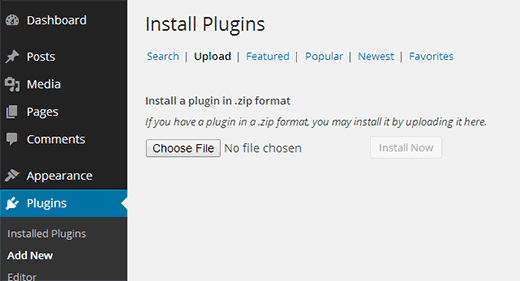
You will see a screen like the one above. Browse the file and upload it (zip files only). You will be taken to the activate a plugin page just like this one:
Make sure that you click on Activate the plugin, now you have installed the WordPress plugin. You would have to configure the settings to fit your needs. These settings will vary for each plugin therefore we will not be covering that in this post.
Comments
0 comments
Please sign in to leave a comment.