
Are you looking to install a WordPress theme? As a beginner, you probably have heard about tons of available free and paid WordPress themes. As you’re starting out, you may want to try out a few themes on your site until you find the right one that meet your needs. In this beginner’s guide, we will provide you with detailed step by step instructions on how to install a WordPress theme for beginners. We will cover three different ways to install a WordPress theme.
Before You Install a WordPress Theme
Installing a WordPress theme is easy. But keep in mind that if you activate a new theme, then it will change how your website looks and function. If you’re switching from an existing theme, then you may want to look at our checklist of things you need to do before changing WordPress themes.
Install a Theme using WordPress Admin Theme Search
If you’re looking to install a free WordPress theme from the WordPress.org themes directory, then the easiest way is by using the WordPress admin theme search functionality.
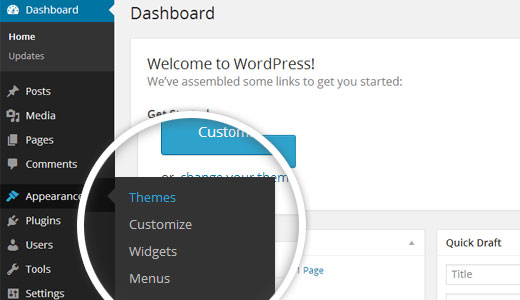
First thing you need to do is login to your WordPress admin area. Next, click onAppearance » Themes.
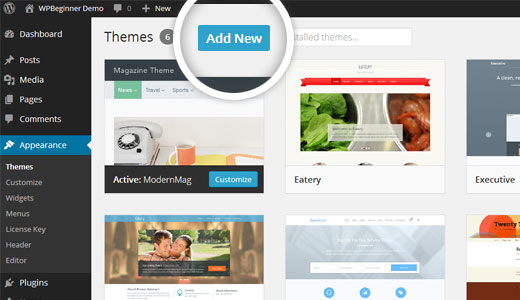
Once you are on the themes page, click on the Add New button at the top.
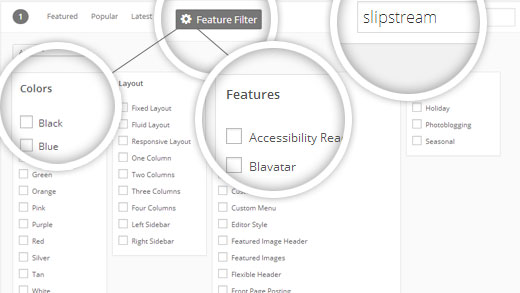
On the next screen, you will have the ability to select from: Featured WordPress themes, Popular WordPress themes, Latest WordPress themes, search for a specific theme, or search for themes with specific features.
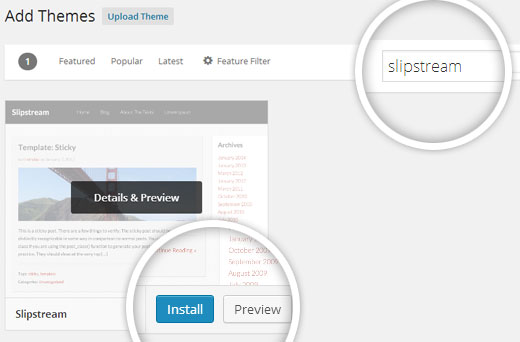
Based on your search, you will see a single theme or a list of themes that met your criteria. In our case, we searched for the blogging theme Slipstream.
When you see the theme that you want to install, simply bring your mouse on top of the image. This will reveal the install button, preview button, and details button. Go ahead and click on the install button.
WordPress will now install your theme and show you a success message along with the link to activate or live preview.
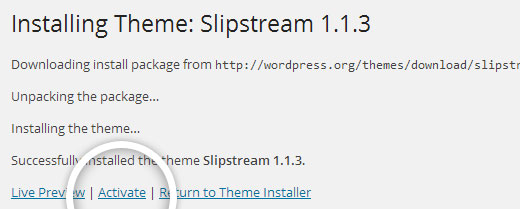
Click on the activate button, and you’ve successfully installed and activated your WordPress theme.
Note: Depending on the theme, it may add additional settings options that you may need to configure either through the theme customizer or through a separate options panel.
Comments
0 comments
Please sign in to leave a comment.