
You can sell digital products, like software, e-books, pdfs, music, etc. on your website with this feature.
Step 1 - Enable Digital Downloads & Members
Step 2 - Upload the Digital Products
Step 3 - Attach Files to the product
Step 1 - Enable Digital Downloads & Members
The first step is to ensure you have digital products enabled.
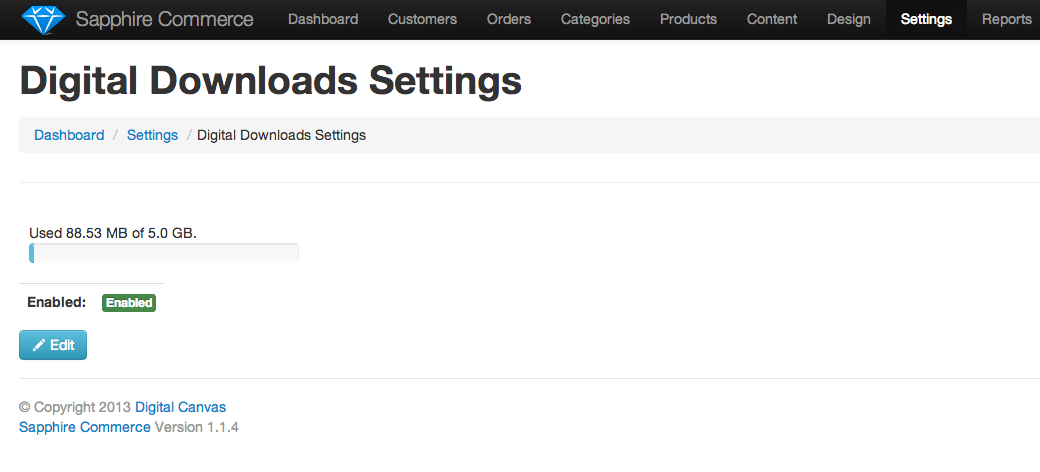
When you login to your admin click on Settings > Digital Download Settings and make sure it's enabled. If not, they you will need to enable it. If you can not enable this feature, make sure to contact support to determine if your plan supports this feature. You must have Members enabled in the admin to sell Digital Products.
Step 2 - Upload the Digital Products
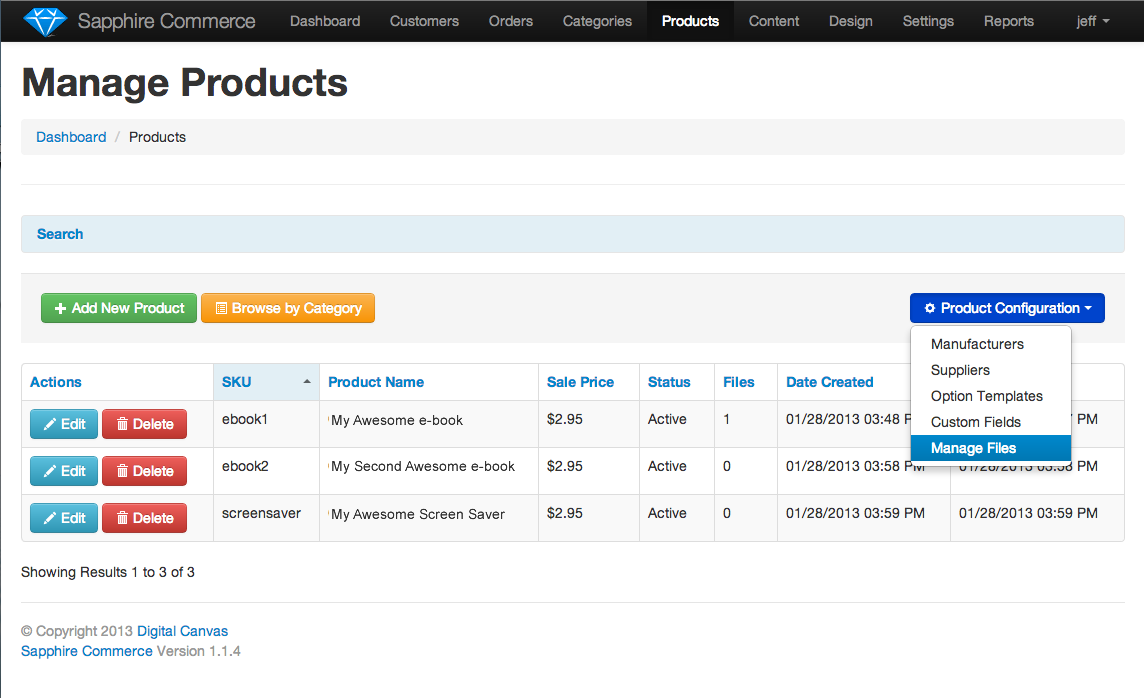
The next step is to upload the digital products to the server. Click on the blue "Product Configuration" button and Select "Manage Files". (You may also slick on Manage Files on the product screen).
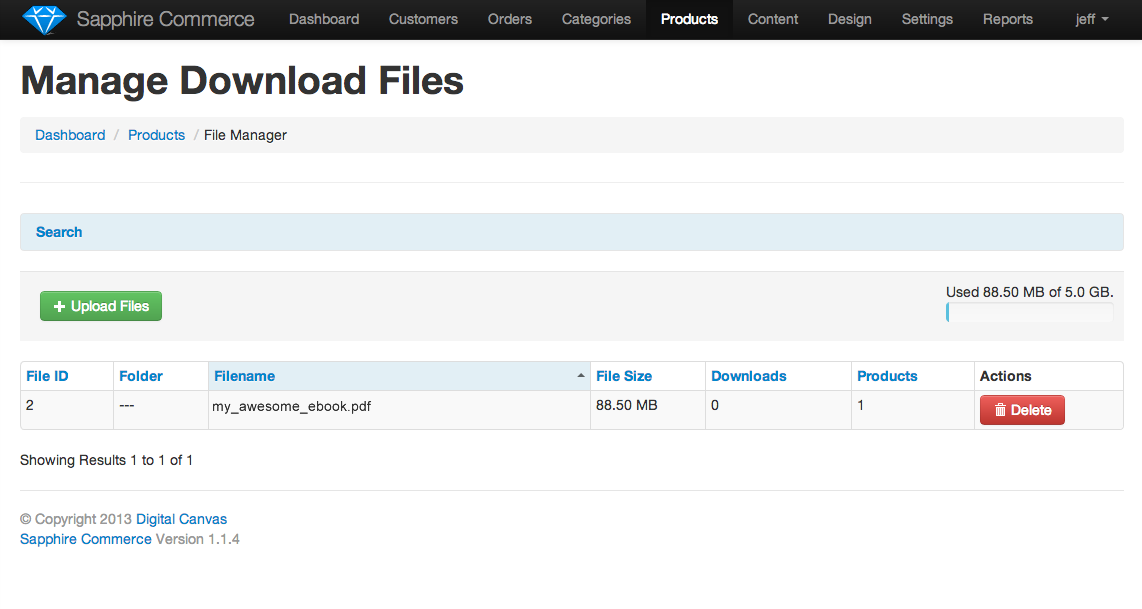
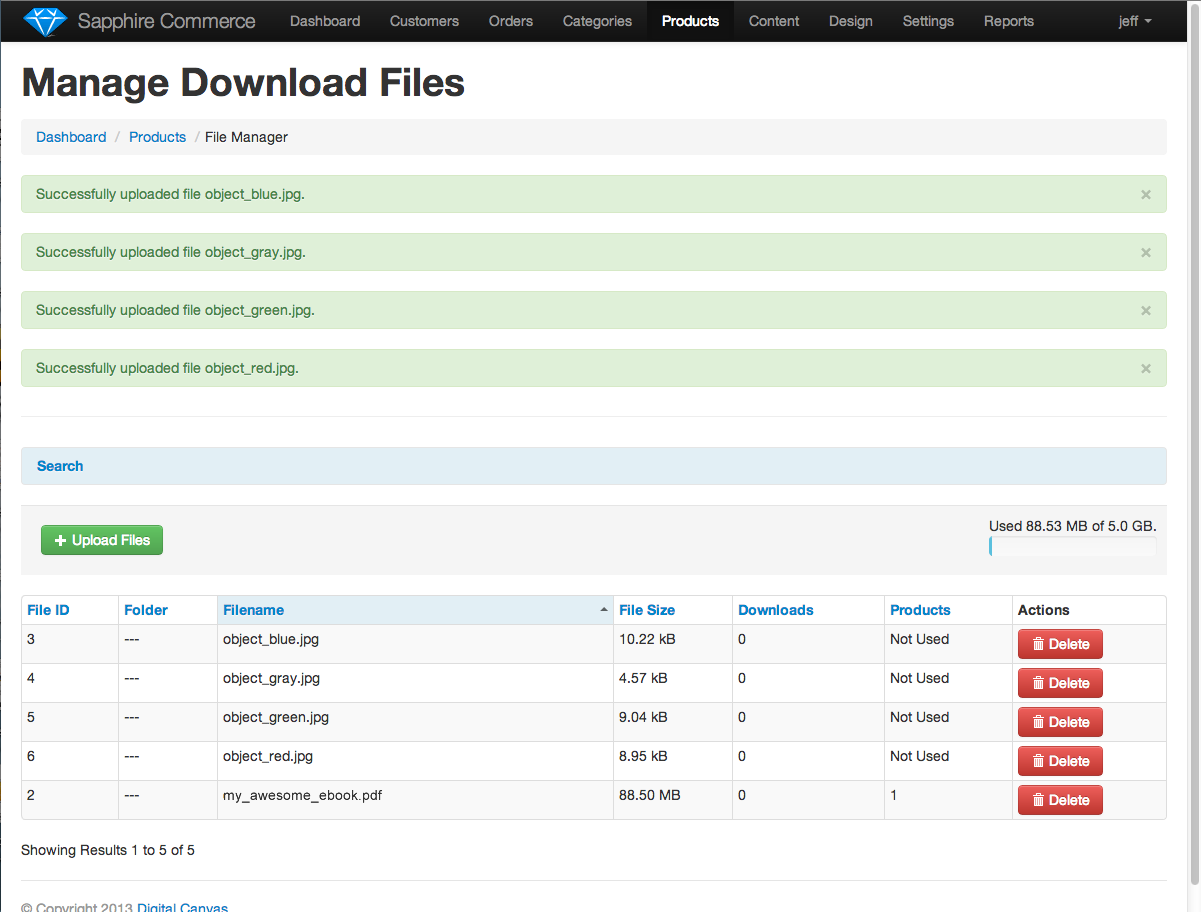
On the "Manage Files" screen, Click the green "Upload Files" button.
This will take you to a page to upload the files. You may either click the "Add Files" button, or drag the files onto the page. If dragging the files, they need to be dropped in the area that states "Drag files here."
Step 3 - Attach Files to the product
Once the files have been uploaded you need to attach the files to the product. Navigate to the Products menu, then click edit on the product to work with. Once on the product edit page, click on the Digital Downloads tab. On the Digital Download tab, click on the green "+ Attach files" button.
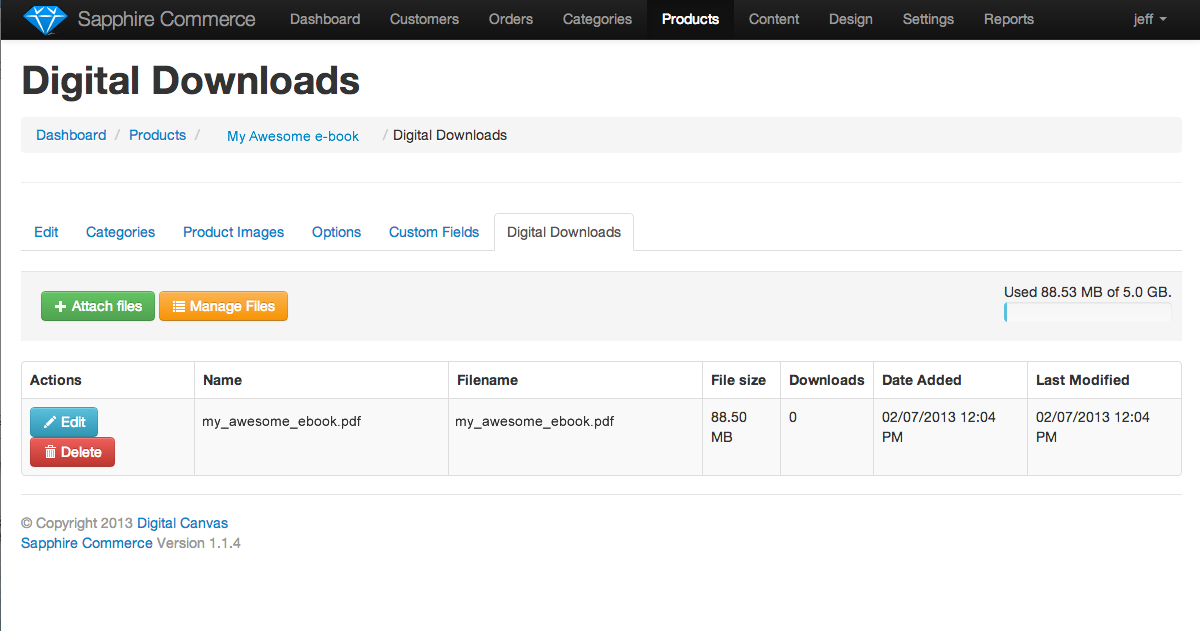
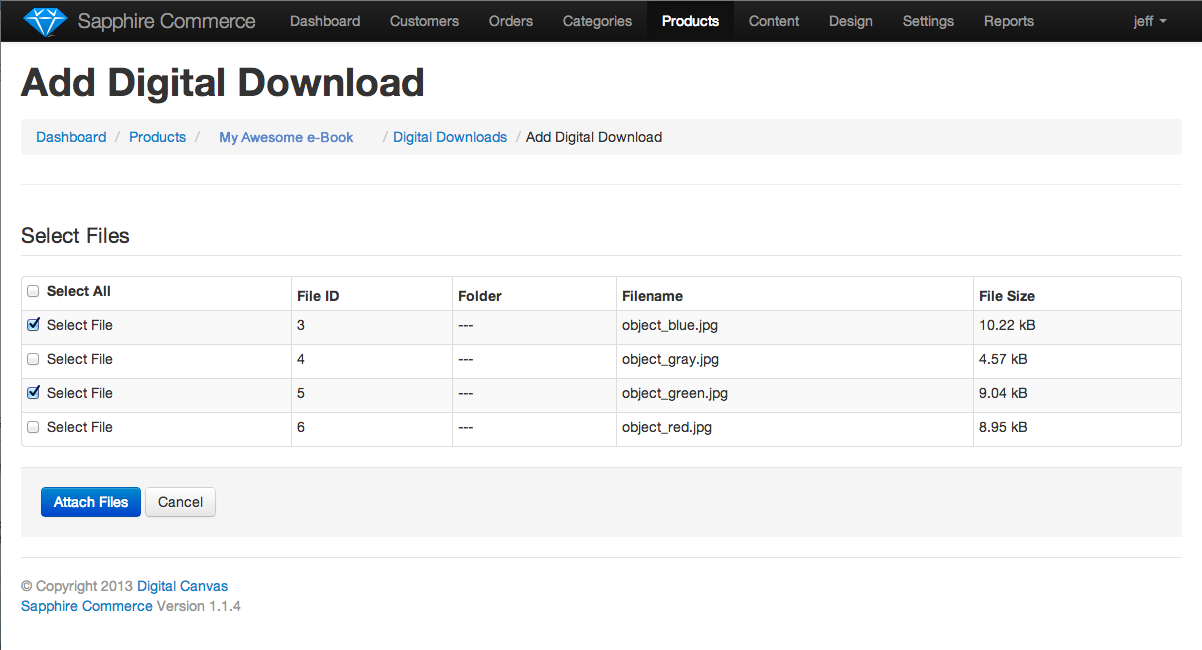
Select the files you would like to attach to the product by clicking the check box next to the file and click blue Attach Files button
The files are now be attached to the product and you will see them in the Digital Download tab of the product.
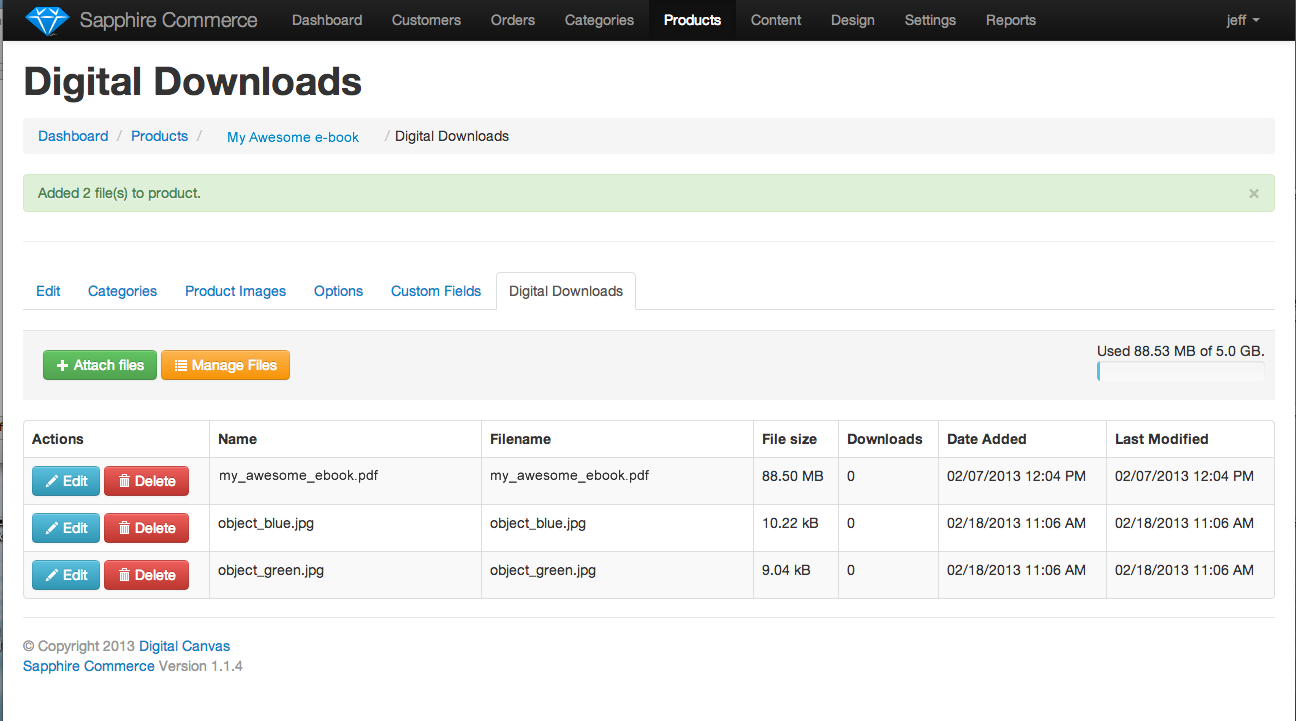
All the files attached to a specific product will be available for the user to download when the purchase this product. You can attach multiple files or a single file.
HINT: Updating new version
If there is a new version you would like to automatically release to all users that purchased the original product, then simply add the new file to the product or replace the existing one and all the new version will be available to the users that previously purchased the product
Comments
0 comments
Please sign in to leave a comment.